
Convert Column of S to Numeric in Fewest Keystrokes
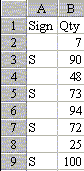
May 1999 Challenge:You get 6000 rows of transaction data from a legacy mainframe system. This data represents negative numbers with an "S" in the sign column. In as few keystrokes as possible, change the numbers with a "S" next to them to be negative.
Results
When Mr Excel faces this problem, he uses the same solution sent in by many readers.
- Click in C2
- Type =IF(A2="S",-B2,B2)
- Hit enter. Click in A2 again
- Double click the auto-fill handle
- Ctrl-C to copy, left arrow, Alt-esv to paste special values
This takes 24 key strokes and 3 clicks. Some readers had twists on this basic approach which cut the keystrokes. P. Jeremy Dumayas suggested changing the formula to =IF(A2="",B2,-B2) in order to save one keystroke. Raoul Pontecaille pointed out that after entering the formula, you should just click the green checkmark validation icon in the formula bar. This replaces the enter and up arrow with a single click.
Charles Davies, Terence Harvey and Antero Lehtonen all submitted variations on a different approach.
- Click on Autofilter
- Autofilter column A to just the S's
- Enter a -1 in C1
- Copy cell C1
- Select column B down to row 6000
- Edit - Goto - Special - Visible Cells Only
- Paste Special Values, operation multiply
Because you do not have to use the keystroke intensive =IF formula here, you can get this down to about 6 clicks and 8 keystrokes. Very impressive.
B Carter and D Dion made use of the Ctrl H shortcut for bringing up the edit replace dialog to come in with a competitive entry that eliminates the need to Autofilter.
- Ctrl+Shift+* selects current region of data
- Shift+LeftArrow selects first column only
- Ctrl+H displays Replacement Window
- Replace: "S" With: -1, Replace All
- Ctrl+H displays Replacement Window again
- Replace: "" With: 1, Replace All
- Ctrl+C copies current selection
- Right mouse button on cell "Qty" - PasteSpecial...
- Change Operation to Multiply, OK that
The winning entry submitted by Marcus Macrae takes this one step further.
- Click on column A
- Ctrl H S[tab]-1[alt a] to replace all S with -1
- Ctrl C to copy
- Click on column B
- Alt e s m b [enter] to edit paste special multiply skip blanks
This is 2 clicks, 11 keystrokes. The skip blanks portion allowed you to eliminate doing a 2nd replace.
Thanks to everyone who responded to this month's challenge. There were a lot of great ideas submitted.
