
Ivan F Moala's Color Banding to identify current cell
July 14, 2002 - by Bill Jelen
Kudos to Ivan F. Moala, our first Hall of Fame winner for his solution to the color banding problem.
The Question: In order to help visually locate the active cell pointer, is there a way to have a temporary color band appear in the current row and column?
The solution is an elegant solution to this question. Important: This solution makes use of Conditional Formatting, and will overwrite any conditional formats that you have on the worksheet. Do not use this method if you already have conditional formats on the worksheet.
What it does:
- Ivan's code will highlight the current row and column, up to the cell pointer in a light yellow color.
- As you move to a new cell, the highlights move with the cell pointer.
- If the cell pointer moves to a cell that is already yellow, the highlights change color
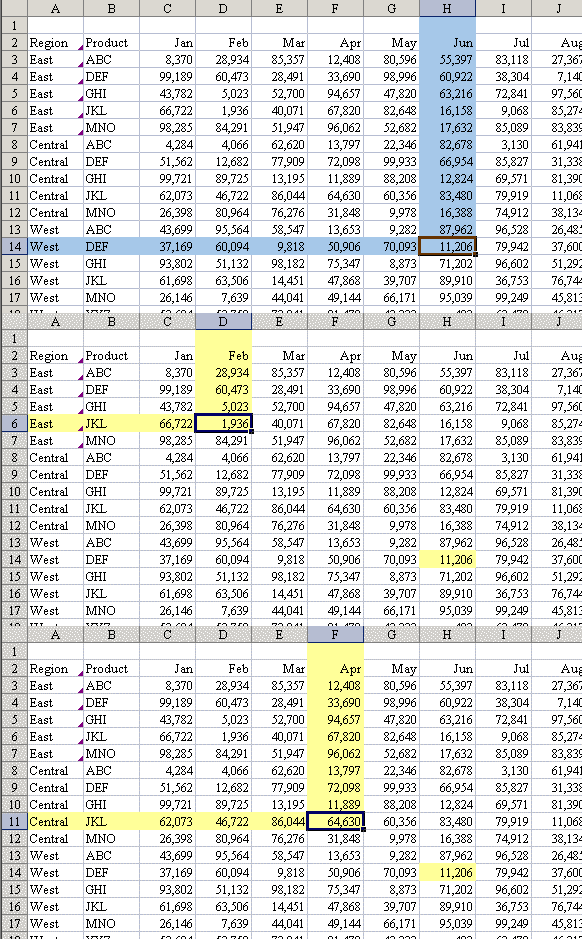
This effect is accomplished by using the Worksheet_SelectionChange event handler. The following code must be pasted on to the Worksheet code module. If you don't understand the difference between a regular module and the Worksheet module, review Event Macro To Change Excel Header. Every time that the cell pointer is moved to a new location, the code will delete all conditional formats on the worksheet, and assign a new conditional format on the fly to the cells in the current row and column.
There are two drawbacks to this method. First, as mentioned above, it is not appropriate if you already have conditional formats. Second, the code tends to clear the clipboard, so it becomes virtually impossible to copy and paste while this code is running.
Private Sub Worksheet_SelectionChange(ByVal Target As Range)
Dim iColor As Integer
'// Amended routine found on this Web site
'// Note: Don't use IF you have Conditional
'// formating that you want to keep!

'// On error resume in case
'// user selects a range of cells
On Error Resume Next
iColor = Target.Interior.ColorIndex
'Leave On Error ON for Row offset errors

If iColor < 0 Then
    iColor = 36
Else
    iColor = iColor + 1
End If

'// Need this test incase Font color is the same
If iColor = Target.Font.ColorIndex Then iColor = iColor + 1

Cells.FormatConditions.Delete

'// Horizontal color banding
With Range("A" & Target.Row, Target.Address) 'Rows(Target.Row)
    .FormatConditions.Add Type:=2, Formula1:="TRUE"
    .FormatConditions(1).Interior.ColorIndex = iColor
End With

'// Vertical color banding
With Range(Target.Offset(1 - Target.Row, 0).Address & ":" & Target.Offset(-1, 0).Address) 'Rows(Target.Row)
    .FormatConditions.Add Type:=2, Formula1:="TRUE"
    .FormatConditions(1).Interior.ColorIndex = iColor
End With

End Sub